
Text Editors
Introduction
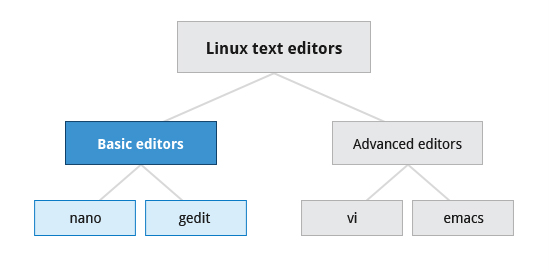
Section titled “Introduction”- How to create and edit files using the available Linux text editors.
- nano, a simple text-based editor.
- gedit, a simple graphical editor.
- vi and emacs, two advanced editors with both text-based and graphical interfaces.
Basic Editors: nano and gedit
Section titled “Basic Editors: nano and gedit”-
nano is easy to use, and requires very little effort to learn.
-
To open a file, type
nano <filename>and pressEnter. If the file does not exist, it will be created. -
nano provides a two line shortcut bar at the bottom of the screen that lists the available commands. Some of these commands are:
Command Usage CTRL-GDisplay the help screen. CTRL-OWrite to a file. CTRL-XExit a file. CTRL-RInsert contents from another file to the current buffer. CTRL-CShow cursor position.
- can only be run within a Graphical Desktop environment. It is visually quite similar to the Notepad text editor in Windows
- To open a new file find the program in your desktop’s menu system, or from the command line type
gedit <filename>. If the file does not exist, it will be created.
More Advanced Editors: vi and emacs
Section titled “More Advanced Editors: vi and emacs”vi (VIM Improved)
Section titled “vi (VIM Improved)”Modes in vi
| Mode | Feature |
|---|---|
| Command | - By default, vi starts in Command mode. Each key is an editor command. Keyboard strokes are interpreted as commands that can modify file contents. |
| Insert | - Type i to switch to Insert mode from Command mode. Insert mode is used to enter (insert) text into a file. Insert mode is indicated by an “? INSERT ?” indicator at the bottom of the screen. Press Esc to exit Insert mode and return to Command mode. |
| Line | - Type : to switch to the Line mode from Command mode. Each key is an external command, including operations such as writing the file contents to disk or exiting. Press Esc to exit Line mode and return to Command mode. |
[[vimtutor]]
Most important vi commands
| Command | Usage |
|---|---|
vi myfile | Start the editor and edit myfile |
vi -r myfile | Start and edit myfile in recovery mode from a system crash |
:r file2 | Read in file2 and insert at current position |
:w | Write to the file |
:w myfile | Write out to myfile |
:w! file2 | Overwrite file2 |
:x or :wq | Exit and write out modified file |
:q | Quit |
:q! | Quit even though modifications have not been saved |
Searching for Text in vi
**ENTER** key should be pressed after typing the search pattern.
| Command | Usage |
|---|---|
/pattern | Search forward for pattern |
?pattern | Search backward for pattern |
most important keystrokes used when searching for text in vi.
| Key | Usage |
|---|---|
n | Move to next occurrence of search pattern |
N | Move to previous occurrence of search pattern |
Changing Cursor Position
| Key | Usage |
|---|---|
| arrow keys | To move up, down, left and right |
j or <ret> | To move one line down |
k | To move one line up |
h or Backspace | To move one character left |
l or Space | To move one character right |
0 | To move to beginning of line |
$ | To move to end of line |
w | To move to beginning of next word |
:0 or 1G | To move to beginning of file |
:n or nG | To move to line n |
:$ or G | To move to last line in file |
CTRL-F or Page Down | To move forward one page |
CTRL-B or Page Up | To move backward one page |
^l | To refresh and center screen |
Using External Commands in vi
- Typing
**sh**command opens an external command shell. When you exit the shell, you will resume your editing session. - Typing
**!**executes a command from within vi. The command follows the exclamation point. - This technique is best suited for non-interactive commands, such as :
**! wc %**. Typing this will run the**wc**(word count) command on the file; the character % represents the file currently being edited.
- Rather than having different modes for command and insert, like vi, emacs uses the
**CTRL**and Meta (**Alt**or**Esc**) keys for special commands.
Working with emacs
| Key | Usage |
|---|---|
emacs myfile | Start emacs and edit myfile |
CTRL-x i | Insert prompted for file at current position |
CTRL-x s | Save all files |
CTRL-x CTRL-w | Write to the file giving a new name when prompted |
CTRL-x CTRL-s | Saves the current file |
CTRL-x CTRL-c | Exit after being prompted to save any modified files |