
Firewalls
What Is a Firewall?
Section titled “What Is a Firewall?”A firewall is a network security system that monitors and controls all network traffic. It applies rules on both incoming and outgoing network connections and packets and builds flexible barriers (i.e., firewalls) depending on the level of trust and network topography of a given connection.
Firewalls can be hardware or software based. They are found both in network routers, as well as in individual computers, or network nodes. Many firewalls also have routing capabilities.
- They protect against intrusions and other attack vectors
- They control the trust level on particular interfaces and/or addresses
Packet Filtering
Section titled “Packet Filtering”Almost all firewalls are based on Packet Filtering.
Information is transmitted across networks in the form of packets, and each one of these packets has:
- Header
- Payload
- Footer
The header and footer contain information about destination and source addresses, what kind of packet it is, and which protocol it obeys, various flags, which packet number this is in a stream, and all sorts of other metadata about transmissions. The actual data is in the payload.
Packet filtering intercepts packets at one or more stages in the network transmission, including application, transport, network, and datalink.
A firewall establishes a set of rules by which each packet may be:
- Accepted or rejected based on content, address, etc.
- Mangled in some way
- Redirected to another address
- Inspected for security reasons, etc.
Various utilities exist for establishing rules and actions to be taken as the result of packet filtering.
Firewall Generations
Section titled “Firewall Generations”- Early firewalls (dating back to the late 1980s) were based on packet filtering: the content of each network packet was inspected and was either dropped, rejected, or sent on. No consideration was given about the connection state: what stream of traffic the packet was part of.
- The next generation of firewalls were based on stateful filters, which also examine the connection state of the packet to see if it is a new connection, part of an already existing one, or part of none. Denial of service attacks can bombard this kind of firewall to try and overwhelm it.
- The third generation of firewalls is called Application Layer Firewalls, and are aware of the kind of application and protocol the connection is using. They can block anything which should not be part of the normal flow.
Firewall Interfaces and Tools
Section titled “Firewall Interfaces and Tools”Configuring your system’s firewall can be done by:
- Using relatively low-level tools from the command line, combined with editing various configuration files in the
/etcsubdirectory tree:iptables,firewall-cmd,ufw, etc. - Using robust graphical interfaces:
system-config-firewall,firewall-config,gufw,yast, etc.
firewalld and firewall-cmd
Section titled “firewalld and firewall-cmd”firewalld is the Dynamic Firewall Manager. It utilizes network/firewall zones which have defined levels of trust for network interfaces or connections. It supports both IPv4 and IPv6 protocols.
In addition, it separates runtime and permanent (persistent) changes to configuration, and also includes interfaces for services or applications to add firewall rules.
Configuration files are kept in the /etc/firewalld and /usr/lib/firewalld directories; the files in /etc/firewalld override those in the other directory and are the ones a system administrator should work on.
The command line tool is actually firewall-cmd.
firewalld Service Status
Section titled “firewalld Service Status”firewalld is a service which needs to be running to use and configure the firewall, and is enabled/disabled, or started or stopped in the usual way (see the following commands):
sudo systemctl [enable/disable] firewalldsudo systemctl [start/stop] firewalld
sudo systemctl status firewalldfirewalld.service - firewalld - dynamic firewall daemon   Loaded: loaded (/usr/lib/systemd/system/firewalld.service; enabled)   Active: active (running) since Tue 2015-04-28 12:00:59 CDT; 5min ago Main PID: 777 (firewalld)...
sudo firewall-cmd --staterunning
#Note that if you have more than one network interface when using IPv4, you have to turn on ip forwarding. You can do this at runtime by running either of the following commands:
sudo sysctl net.ipv4.ip_forward=1echo 1 > /proc/sys/net/ipv4/ip_forward
#where the second command has to be run as root to get echo to work properly. However, this is not persistent. To do that, you have to add the following line to the /etc/sysctl.conf file:
vi /etc/sysctl.confnet.ipv4.ip_forward=1
#and then reboot or type this command:sudo sysctl -p#to read in the new setting without rebooting.firewalld works with zones, each of which has a defined level of trust and a certain known behavior for incoming and outgoing packets. Each interface belongs to a particular zone (normally, it is Network Manager which informs firewalld which zone is applicable), but this can be changed with firewall-cmd or the firewall-config GUI.
Zones:
- drop - All incoming packets are dropped with no reply. Only outgoing connections are permitted.
- block - All incoming network connections are rejected. The only permitted connections are those from within the system.
- public - Do not trust any computers on the network; only certain consciously selected incoming connections are permitted.
- external - Used when masquerading is being used, such as in routers. Trust levels are the same as in public.
- dmz (Demilitarized Zone) - Used when access to some (but not all) services are to be allowed to the public. Only particular incoming connections are allowed.
- work - Trust (but not completely) connected nodes to be not harmful. Only certain incoming connections are allowed.
- home - You mostly trust the other network nodes, but still select which incoming connections are allowed.
- internal - Similar to the work zone.
- trusted - All network connections are allowed.
On system installation, most if not all Linux distributions will select the public zone as default for all interfaces. The differences between some of the above zones are not obvious and we do not need to go into that much detail here, but note that you should not use a more open zone than necessary.
Zone Management Examples
Section titled “Zone Management Examples”To see the options available for firewall-cmd, run this command:
#Get the default zone (command and output below):sudo firewall-cmd --get-default-zonepublic
#Obtain a list of zones currently being used (command and output below):sudo firewall-cmd --get-active-zonespublic  interfaces: eno16777736
#List all available zones (command and output below):sudo firewall-cmd --get-zonesblock dmz drop external home internal public trusted work
#To change the default zone to trusted and then change it back (commands and outputs below):sudo firewall-cmd --set-default-zone=trustedsuccess
sudo firewall-cmd --set-default-zone=publicsuccess
#To assign an interface temporarily to a particular zone (command and output below):sudo firewall-cmd --zone=internal --change-interface=eno1success
#To assign an interface to a particular zone permanently (command and output below):sudo firewall-cmd --permanent --zone=internal --change-interface=eno1success
#which creates the file /etc/firewalld/zones/internal.xml.
To ascertain the zone associated with a particular interface (command and output below):
$ sudo firewall-cmd --get-zone-of-interface=eno1public
#To get all details about a particular zone (command and output below):sudo firewall-cmd --zone=public --list-allpublic (active)  target: default  icmp-block-inversion: no  interfaces: eno1  sources:  services: chromecast libvirt libvirt-tls nfs nfs3 rsyncd ssh  ports:  protocols:  masquerade: no  forward-ports:  source-ports:  icmp-blocks:  rich rules:
#Controlling firewalld is done through the firewall-cmd program. More detailed information can be obtained with:man firewalld-cmd
Source Management
Section titled “Source Management”Any zone can be bound not just to a network interface, but also to particular network addresses. A packet is associated with a zone if:
- It comes from a source address already bound to the zone; or if not,
- It comes from an interface bound to the zone.
Any packet not fitting the above criteria is assigned to the default zone (i.e, usually public).
To assign a source to a zone (permanently), run this command:
sudo firewall-cmd --permanent --zone=trusted --add-source=192.168.1.0/24successThis says anyone with an IP address of 192.168.1.x will be added to the trusted zone.
Note that you can remove a previously assigned source from a zone by using the --remove-source option, or change the zone by using --change-source.
You can list the sources bound to a zone with the following command:
sudo firewall-cmd --permanent --zone=trusted --list-sources 192.168.1.0/24In both of the above commands, if you leave out the --permanent option, you get only the current runtime behavior.
Service Management
Section titled “Service Management”So far, we have assigned particular interfaces and/or addresses to zones, but we haven’t delineated what services and ports should be accessible within a zone.
To see all the services available, use this command:
sudo firewall-cmd --get-servicesRH-Satellite-6 amanda-client bacula bacula-client dhcp dhcpv6 dhcpv6-client dns ftp high-availability http https imaps ipp ipp-client ipsec kerberos kpasswd ldap ldaps libvirt libvirt-tls mdns mountd ms-wbt mysql nfs ntp openvpn pmcd pmproxy pmwebapi pmwebapis pop3s postgresql proxy-dhcp radius rpc-bind samba samba-client smtp ssh telnet tftp tftp-client transmission-client vnc-server wbem-https
#or, to see those currently accessible in a particular zone, run:sudo firewall-cmd --list-services --zone=publicdhcpv6-client ssh
#To add a service to a zone, type:sudo firewall-cmd --permanent --zone=home --add-service=dhcpsuccess
sudo firewall-cmd --reload
#The second command, with --reload, is needed to make the change effective. It is also possible to add new services by editing the files in /etc/firewalld/services.
Port Management
Section titled “Port Management”Port management is very similar to service management (commands and outputs below):
sudo firewall-cmd --zone=home --add-port=21/tcpsuccess
sudo firewall-cmd --zone=home --list-ports21/tcp
#where by looking at /etc/services we can ascertain that port 21 corresponds to ftp (command and output below):grep " 21/tcp" /etc/servicesftp              21/tcp
Port Redirection and NAT
Section titled “Port Redirection and NAT”During packet ingress, sometimes it is desirable to change the destination port. When remapping ports, it is best to specify the zone and optionally an IP address to make the rule as specific as possible. This will avoid generalized rules capturing unintended packets. In the example below, the zone and port are specified.
- Inbound packet for port 80 needs to be re-directed to port 8080
- Specify the zone that is used for external connection with
--zone=external
Command:
sudo firewall-cmd --zone=external --add-forward-port=port=80:proto=tcp:toport=8080success
sudo firewall-cmd --zone=external --list-allexternal  target: default  icmp-block-inversion: no  interfaces:  sources:  services: ssh  ports:  protocols:  forward: yes  masquerade: yes  forward-ports:        port=80:proto=tcp:toport=8080:toaddr=  source-ports:  icmp-blocks:  rich rules:
Network Address Translation (NAT)
Section titled “Network Address Translation (NAT)”Network Address Translation (NAT) is a method the firewall uses to change the packet source or destination address as it enters or exits the firewall. There are several types of NAT:
- DNAT (Destination Network Address Translation)
- SNAT (Source Network Address Translation)
- Masquerade, a variation of SNAT
DNAT (Destination Network Address Translation)
Section titled “DNAT (Destination Network Address Translation)”DNAT (Destination Network Address Translation) alters the end destination (the “to” IP address) and possibly the destination port, as the packet enters the system from the Internet.
- When a packet is sent, it will have the public IP address provided by DNS
- The public IP address will be that of the firewall
- Changing the destination of the packet is necessary to allow the packet to move through the firewall to the internal network to the desired service
The DNAT firewall rule is normally placed in the pre-routing chain of the NAT table. This would be the Internet-facing adapter and the public address used by services like a web server.
Since firewalls are typically pass-through devices (few local services), the packet is examined and the destination port examined to see if there is an applicable rule. Our rule will examine the packet for:
- Destination IP address; it should be that of the firewall
- Destination port number; it will be the port number of the service (http=80)
- The DNAT rule will change the destination IP address to the address of the web server behind the firewall
- The packet will be forwarded to the web server behind the firewall
- The web server accepts and processes the packet and sends its reply
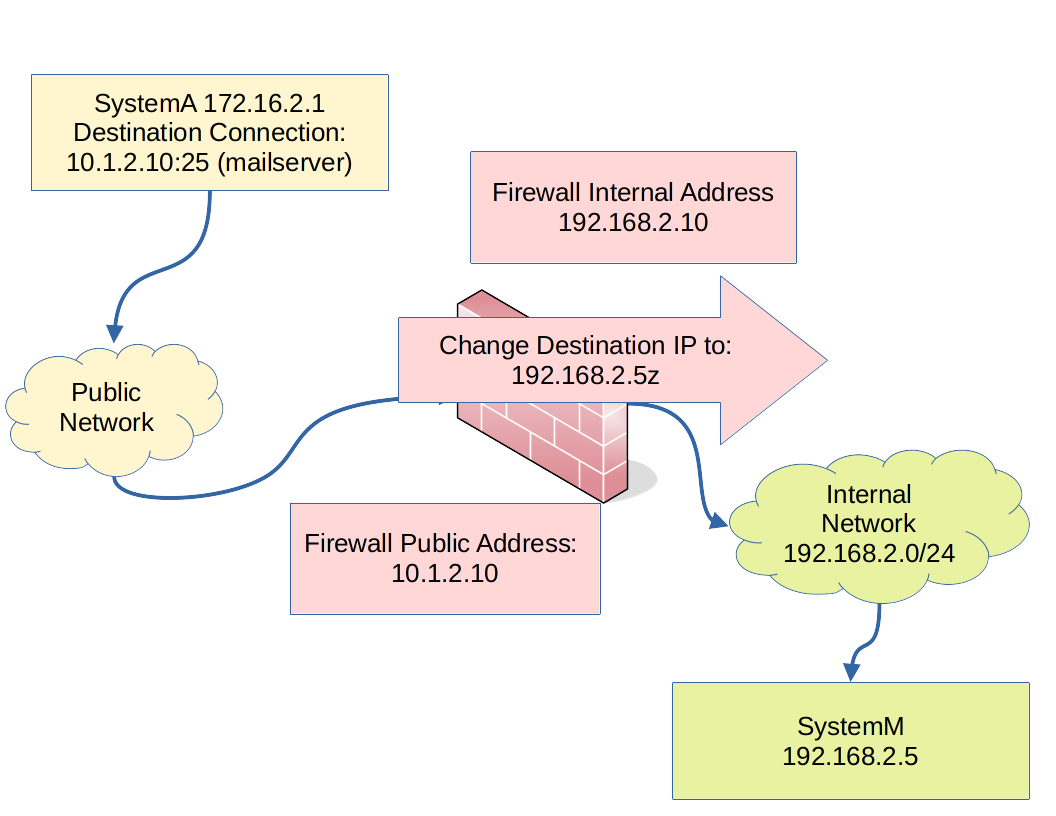
The graphic shows a typical path a packet takes from a user system to a service on a system inside a firewall protected network.
- SystemA (IP 172.16.2.1) looks up the address for systemM (IP 10.1.2.25) for mail delivery
- The destination port number will be the port number of the service (smtp=25)
- The DNAT rule on the firewall will change the destination to the address of the mail server behind the firewall (IP 192.168.2.5)
- The packet will be forwarded to the mail server behind the firewall.
- The mail server accepts and processes the packet and sends a reply
SNAT and Masquerade
Section titled “SNAT and Masquerade”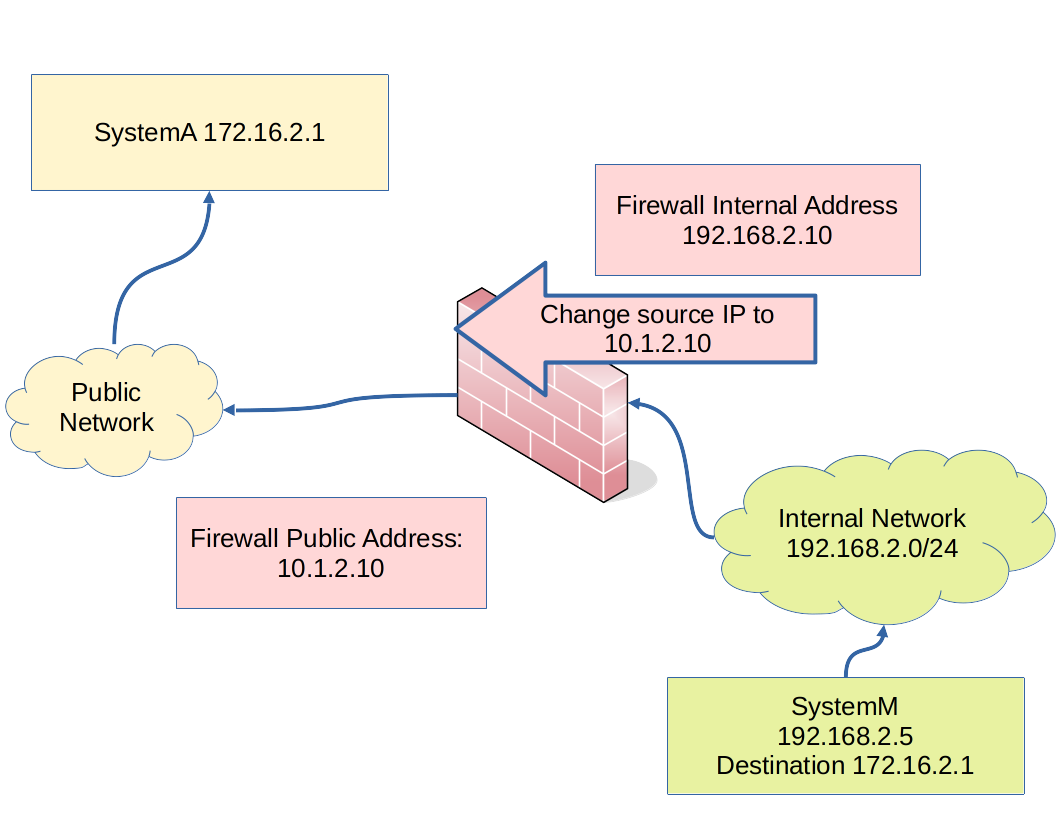
Source Network Address Translation (SNAT) changes the source (the “from”) IP address on the packet as it leaves the system on the way to the Internet.
- Translation is required to protect the addresses used on internal networks from exposure to the Internet
- Most internal networks are private networks and not routable
If the IP address on the outbound interface is provided by DHCP, the Masquerade option is used to implement SNAT. The masquerade option requires more compute resources than SNAT.
If the outbound interface is static, SNAT can be used and the public IP address is specified.
SNAT and masquerade are in the post-routing chain of the NAT table.
The SNAT or Masquerade firewall rule is normally placed in the post-routing chain of the NAT table. Normally, post-routing is the last examination or modification point as the packet leaves the system on the way to the Internet.
- The destination address of the packet is that of the remote system that initiated the connection
- The source address of the packet will be changed from the internal address of the service to that of the firewall’s public facing adapter