
File Permissions
File Ownership
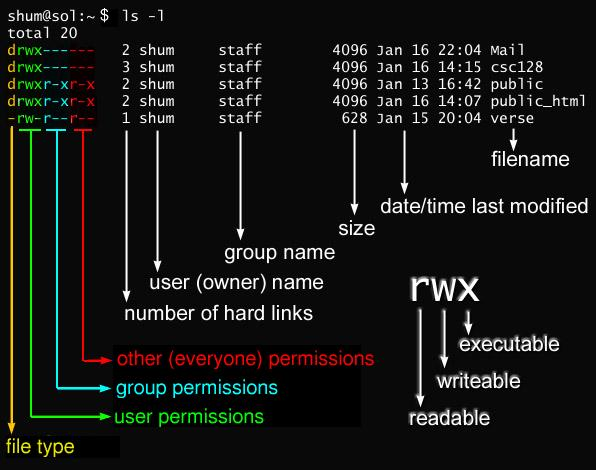
Section titled “File Ownership”- In Linux and other UNIX-based operating systems, every file is associated with a user who is the owner. Every file is also associated with a group (a subset of all users) which has an interest in the file and certain rights, or permissions: read, write, and execute.
- The following utility programs involve user and group ownership and permission setting:
| Command | Usage |
|---|---|
chown | Used to change user ownership of a file or directory |
chgrp | Used to change group ownership |
chmod | Used to change the permissions on the file, which can be done separately for owner, group and the rest of the world (often named as other) |
File Permission Modes and chmod
Section titled “File Permission Modes and chmod”-
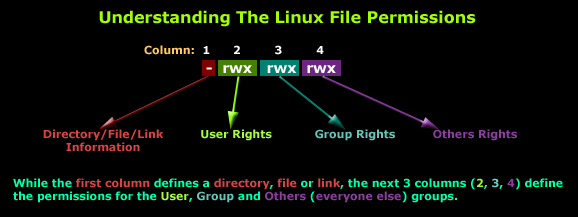
Files have three kinds of permissions: read (
r), write (w), execute (x). These are generally represented as inrwx. -
These permissions affect three groups of owners: user/owner (
u), group (g), and others (o). -
As a result, you have the following three groups of three permissions:
rwx: u: rwx: g: rwx: o:
-
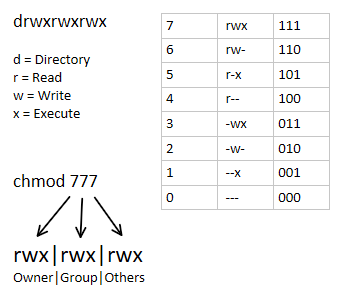
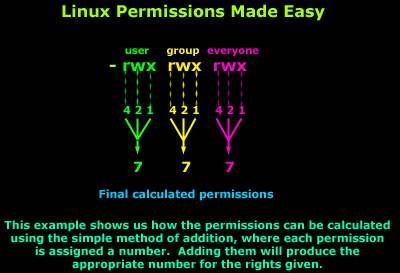
This kind of syntax can be difficult to type and remember, so one often uses a shorthand which lets you set all the permissions in one step. This is done with a simple algorithm, and a single digit suffices to specify all three permission bits for each entity. This digit is the sum of:
- 4 if read permission is desired
- 2 if write permission is desired
- 1 if execute permission is desired.
Thus, 7 means read/write/execute, 6 means read/write, and 5 means read/execute.
-
When you apply this to the
chmodcommand, you have to give three digits for each degree of freedom.
-
The default permissions given when creating a file are read/write for owner, group and world (0666), and for a directory it is read/write/execute for everyone (0777). However, if you run the following commands:
Terminal window touch afile$ mkdir adir$ ls -l | grep -e afile -e adirdrwxrwxr-x 2 coop coop 4096 Sep 16 11:18 adir-rw-rw-r-- 1 coop coop 0 Sep 16 11:17 afileyou will notice the actual permissions have changed to 664 for the file and 775 for the directory. They have been modified by the current
umaskwhose purpose is to show which permissions should be denied. The current value can be shown by (command and output below):Terminal window umask0002which is the most conventional value set by system administrators for users. This value is combined with the file creation permissions to get the actual result; i.e.,
0666 & ~002 = 0664; i.e., rw-rw-r-- -
You can change the
umaskat any time with theumaskcommand, as in:Terminal window umask 0022 -
The default
umaskis set in/etc/profile. The root’sumaskis 022.
Special Permissions
Section titled “Special Permissions”Special permissions make up a fourth access level in addition to user, group, and other.
Special permissions allow for additional privileges over the standard permission sets (as the name suggests). There is a special permission option for each access level discussed previously.
SUID (user + s)
Section titled “SUID (user + s)”Commonly noted as SUID, the special permission for the user access level has a single function: A file with SUID always executes as the user who owns the file, regardless of the user passing the command. If the file owner doesn’t have execute permissions, then use an uppercase S here.
Now, to see this in a practical light, let’s look at the /usr/bin/passwd command. This command, by default, has the SUID permission set:
ls -l /usr/bin/passwd-rwsr-xr-x. 1 root root 33544 /usr/bin/passwdNote the s where x would usually indicate execute permissions for the user.
SGID (group + s)
Section titled “SGID (group + s)”Commonly noted as SGID, this special permission has a couple of functions:
- If set on a file, it allows the file to be executed as the group that owns the file (similar to SUID)
- If set on a directory, any files created in the directory will have their group ownership set to that of the directory owner
ls -ltotal 0drwxrws---. 2 tcarrigan tcarrigan 69 Apr 7 11:31 my_articlesThis permission set is noted by a lowercase s where the x would normally indicate execute privileges for the group. It is also especially useful for directories that are often used in collaborative efforts between members of a group. Any member of the group can access any new file. This applies to the execution of files, as well. SGID is very powerful when utilized properly.
As noted previously for SUID, if the owning group does not have execute permissions, then an uppercase S is used.
Sticky Bit (other + t)
Section titled “Sticky Bit (other + t)”The last special permission has been dubbed the “sticky bit.” This permission does not affect individual files. However, at the directory level, it restricts file deletion. Only the owner (and root) of a file can remove the file within that directory. A common example of this is the /tmp directory:
ls -ld /tmp/drwxrwxrwt. 15 root root 4096 Sep 22 15:28 /tmp/The permission set is noted by the lowercase t, where the x would normally indicate the execute privilege.
Setting special permissions
Section titled “Setting special permissions”To set special permissions on a file or directory, you can utilize either of the two methods outlined for standard permissions above: Symbolic or numerical.
Let’s assume that we want to set SGID on the directory community_content.
To do this using the symbolic method, we do the following:
chmod g+s community_content/Using the numerical method, we need to pass a fourth, preceding digit in our chmod command. The digit used is calculated similarly to the standard permission digits:
- Start at 0
- SUID = 4
- SGID = 2
- Sticky = 1
The syntax is:
chmod X### file | directoryWhere X is the special permissions digit.
Here is the command to set SGID on community_content using the numerical method:
chmod 2770 community_content/ls -ld community_content/drwxrws---. 2 tcarrigan tcarrigan 113 Apr 7 11:32 community_content/ACL (Access Control Lists) (setfacl, getfacl)
Section titled “ACL (Access Control Lists) (setfacl, getfacl)”Think of a scenario in which a particular user is not a member of group created by you but still you want to give some read or write access, how can you do it without making user a member of group, here comes in picture Access Control Lists, ACL helps us to do this trick.
Basically, ACLs are used to make a flexible permission mechanism in Linux.
- ACLs allow us to apply a more specific set of permissions to a file or directory without (necessarily) changing the base ownership and permissions. They let us “tack on” access for other users or groups.
#1) To add permission for user (-m:modify)setfacl -m "u:user:permissions" /path/to/file
#2) To add permissions for a groupsetfacl -m "g:group:permissions" /path/to/file
#3) To allow all files or directories to inherit#ACL entries from the directory it is within (-d:default)setfacl -dm "entry" /path/to/dir
#4) To remove a specific entry (-x:remove)setfacl -x "entry" /path/to/file
#5) To remove all entriessetfacl -b path/to/file#deny all permissions to specific usersudo setfacl -m user:aaron:--- examplefile
#remove an ACL for a specific user or a specific groupsudo setfacl -x user:aaron examplefile
#Apply operations to all files and directoriessudo setfacl -R -m user:aaron:rwx dir1/#Set File Access Control List (setfacl)setfacl -m user:owl:rw examplefile
#to view the current ACLgetfacl test/declarations.h# file: test/declarations.h# owner: owl# group: owluser::rw-group::rw-other::r--mask::rw-#Mask defines the maximum permissions that this file or directory#can have.
#if we want to limit already existing permissions#setting maximum permissions we want#would be the ability to read the file, no writing, and no executing.sudo setfacl -m mask:r examplefile
getfacl examplefile# file: examplefile# owner: adm# group: ftpuser: :rw-user:aaron : rw-group: : rw- #effective: r- -mask::r- - #effective: r--other: : r--#This tells us that even though the ACL says of user Aaron can read#and write, the effective real permissions are read-only#and that's because the mask limits the permissions.Immutability and appendOnly features (lsattr, chattr)
Section titled “Immutability and appendOnly features (lsattr, chattr)”- Extended Attributes associate metadata not interpreted directly by the filesystem with files. Four namespaces exist: user, trusted, security, and system.
- The system namespace is used for Access Control Lists (ACLs), and the security namespace is used by SELinux.
- Flag values are stored in the file inode and may be modified and set only by the root user. They are viewed with
lsattrand set withchattr.
Flags:
-
i: ImmutableA file with the immutable attribute cannot be modified (not even by root). It cannot be deleted or renamed. No hard link can be created to it, and no data can be written to the file. Only the superuser can set or clear this attribute.
- An immutable directory cannot be deleted or renamed, and files cannot be added or deleted under such a directory.
-
a: Append-onlyA file with the append-only attribute set can only be opened in append mode for writing. Only the superuser can set or clear this attribute.
- An append-Only directory allows new files or sub directories to be created with 0 byte length; all such new created files and sub directories are marked as append-Only automatically.
-
d: No-dumpA file with the no-dump attribute set is ignored when the dump program is run. This is useful for swap and cache files that you don’t want to waste time backing up.
-
A: No atime updateA file with the no-atime-update attribute set will not modify its atime (access time) record when the file is accessed but not otherwise modified. This can increase the performance on some systems because it reduces the amount of disk I/O.
-
The immutable flag and the appendOnly flag can be set independently. If both immutability and appendOnly are set on a file, immutability restrictions will be in effect.
-
To set or unset these attributes, use the following command options:
chattr [operator] [flags] [filename]+: Adding selected attributes to the existing attributes of the files.–: Causes selected attributes to be removed.=: Causes selected attributes to be the only attributes that the files have. -
To display attributes for a file use
lsattr
#For demonstration purpose, let's use folder demo and file important_file.conf respectivelyls -l total 0 drwxr-xr-x. 2 root root 6 Aug 31 18:02 demo -rwxrwxrwx. 1 root root 0 Aug 31 17:42 important_file.conf\#IMMUTABLE : add attributes on files to secure from deletion#SET ATTRIBUTES#The immutable bit +i can only be set by superuser#(i.e root) user or a user with sudo privileges can able to set.#To set attribute, we use the + sign and to unset use the – sign#with the chattr commandsudo chattr +i demo/sudo chattr +i important_file.conf
#view attributeslsattr----i----------- ./demo----i----------- ./important_file.conf
#UNSET ATTRIBUTESsudo chattr -i demo/ important_file.conf
lsattr---------------- ./demo---------------- ./important_file.conf#APPEND : Append data without Modifying existing data on a Filechattr +a example.txt
lsattr example.txt-----a---------- example.txt
#UNSET ATTRIBUTESchattr -a example.txt#Secure Directories
#To set permissionchattr -R +i myfolder
#To unset permissionchattr -R -i myfolder