
Docker Perspective
Docker can be approached from two perspectives, depending on role. The Ops perspective focuses on managing running containers. The Dev perspective focuses on building applications into images. In practice you will do both - but separating them makes the mental model clearer when starting out.
The Ops Perspective: Managing Containers
Section titled “The Ops Perspective: Managing Containers”The Ops workflow revolves around images and containers as runtime units - pulling them, running them, inspecting them, and cleaning them up.
1. Pull an Image
Section titled “1. Pull an Image”Docker images contain everything an application needs to run: a stripped-down OS filesystem, the app itself, and all its dependencies. Pull one from Docker Hub:
docker pull nginx:latestVerify it arrived locally:
docker images# REPOSITORY TAG IMAGE ID CREATED SIZE# nginx latest a72860cb95fd 2 weeks ago 192MB2. Run a Container
Section titled “2. Run a Container”Launch a container from the image:
docker run --name my-nginx -d -p 8080:80 nginx:latest| Flag | What it does |
|---|---|
--name my-nginx | Gives the container a human-readable name instead of a random one |
-d | Detached mode - runs in the background, your terminal stays free |
-p 8080:80 | Maps port 8080 on your host to port 80 inside the container |
Confirm it is running:
docker ps# CONTAINER ID IMAGE COMMAND STATUS PORTS# 3f4e2c1a9b82 nginx:latest "/docker-entrypoint…" Up 3 seconds 0.0.0.0:8080->80/tcpOpen http://localhost:8080 in a browser - you should see the nginx welcome page.
3. Execute Commands Inside a Running Container
Section titled “3. Execute Commands Inside a Running Container”Attach an interactive shell to inspect the container from the inside:
docker exec -it my-nginx bashOnce inside, you have a shell in the container’s isolated filesystem. You can explore it like any Linux environment:
ls /etc/nginx/cat /etc/nginx/nginx.confexit # returns you to your host terminal4. Stop and Remove a Container
Section titled “4. Stop and Remove a Container”docker stop my-nginx # gracefully stops the container (SIGTERM, then SIGKILL after timeout)docker rm my-nginx # removes the stopped containerTo see all containers including stopped ones:
docker ps -aForce-stop and remove in one step (skips the graceful shutdown):
docker rm my-nginx -fThe Dev Perspective: Containerizing an Application
Section titled “The Dev Perspective: Containerizing an Application”The Dev workflow starts with source code and ends with a runnable container image. This process - packaging an app and its dependencies into a single image - is called containerizing.
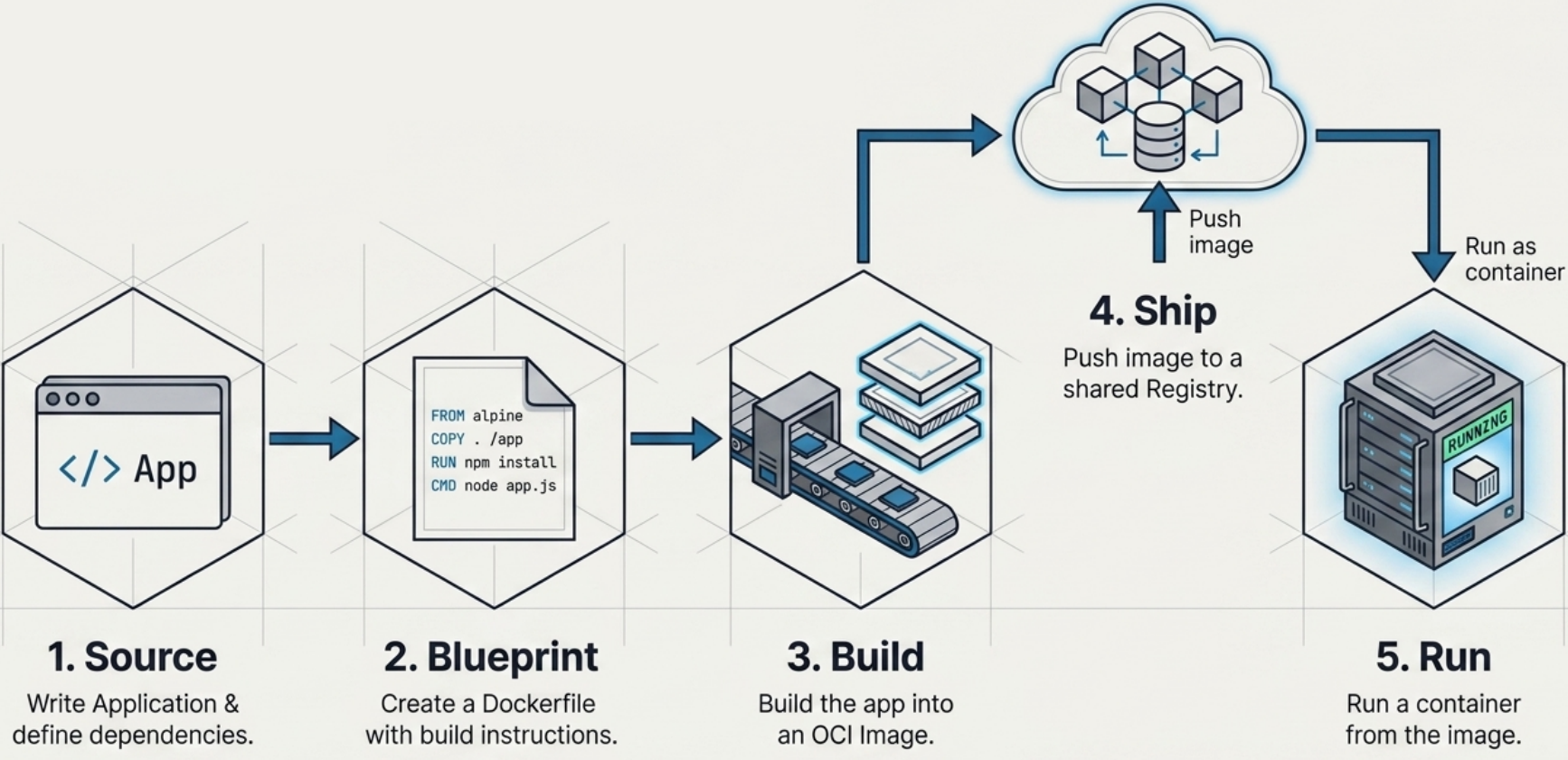
1. Get the App Source
Section titled “1. Get the App Source”git clone https://github.com/your-org/my-node-appcd my-node-app2. Understand the Dockerfile
Section titled “2. Understand the Dockerfile”Every app you containerize needs a Dockerfile - a plain-text file that tells Docker how to build the image, step by step.
A minimal Node.js example:
# Start from the official Node.js base imageFROM node:20-alpine
# Set the working directory inside the containerWORKDIR /app
# Copy dependency manifest first (for layer caching)COPY package*.json ./RUN npm ci --only=production
# Copy the rest of the application sourceCOPY . .
# Expose the port the app listens onEXPOSE 3000
# The command to run when the container startsCMD ["node", "server.js"]
The Dockerfile is the blueprint. Everything needed to reproduce this environment - the OS base, the runtime, the dependencies, the app code - is declared here. See Writing Dockerfiles for the full reference.
3. Build the Image
Section titled “3. Build the Image”docker build -t my-node-app:1.0 .| Part | What it means |
|---|---|
docker build | Reads the Dockerfile and executes each instruction as a layer |
-t my-node-app:1.0 | Tags the resulting image with a name and version |
. | The build context - Docker sends this directory to the daemon |
Watch the layers build in sequence. Each RUN, COPY, and FROM instruction creates a new cached layer:
docker build -t my-node-app:1.0 .# [1/5] FROM node:20-alpine# [2/5] WORKDIR /app# [3/5] COPY package*.json# [4/5] RUN npm ci# [5/5] COPY . .# Successfully built 4a7c9f21b38e# Successfully tagged my-node-app:1.04. Run the Containerized App
Section titled “4. Run the Containerized App”docker run --name my-app -d -p 3000:3000 my-node-app:1.0Open http://localhost:3000 to see the live application running inside a container.
Cleaning Up
Section titled “Cleaning Up”Remove a running container (force):
docker rm my-app -fRemove the image from your local machine:
docker rmi my-node-app:1.0Remove all stopped containers, unused networks, dangling images, and build cache in one pass:
docker system pruneCommon First Commands Reference
Section titled “Common First Commands Reference”| Command | What it does |
|---|---|
docker version | Verify client and daemon are installed and communicating |
docker pull <image> | Download an image from a registry |
docker images | List locally available images |
docker run -d -p <host>:<container> <image> | Start a detached container with a port mapping |
docker ps | List running containers |
docker ps -a | List all containers including stopped |
docker exec -it <name> bash | Open an interactive shell inside a running container |
docker stop <name> | Gracefully stop a container |
docker rm <name> | Remove a stopped container |
docker rm <name> -f | Force-stop and remove in one step |
docker build -t <name>:<tag> . | Build an image from a Dockerfile in the current directory |
docker rmi <image> | Remove a local image |
docker system prune | Clean up all stopped containers, networks, and dangling images |